
Navigate Operations Center
When you log into Operations Center, you will land on the main overview page, which includes three primary tabs:
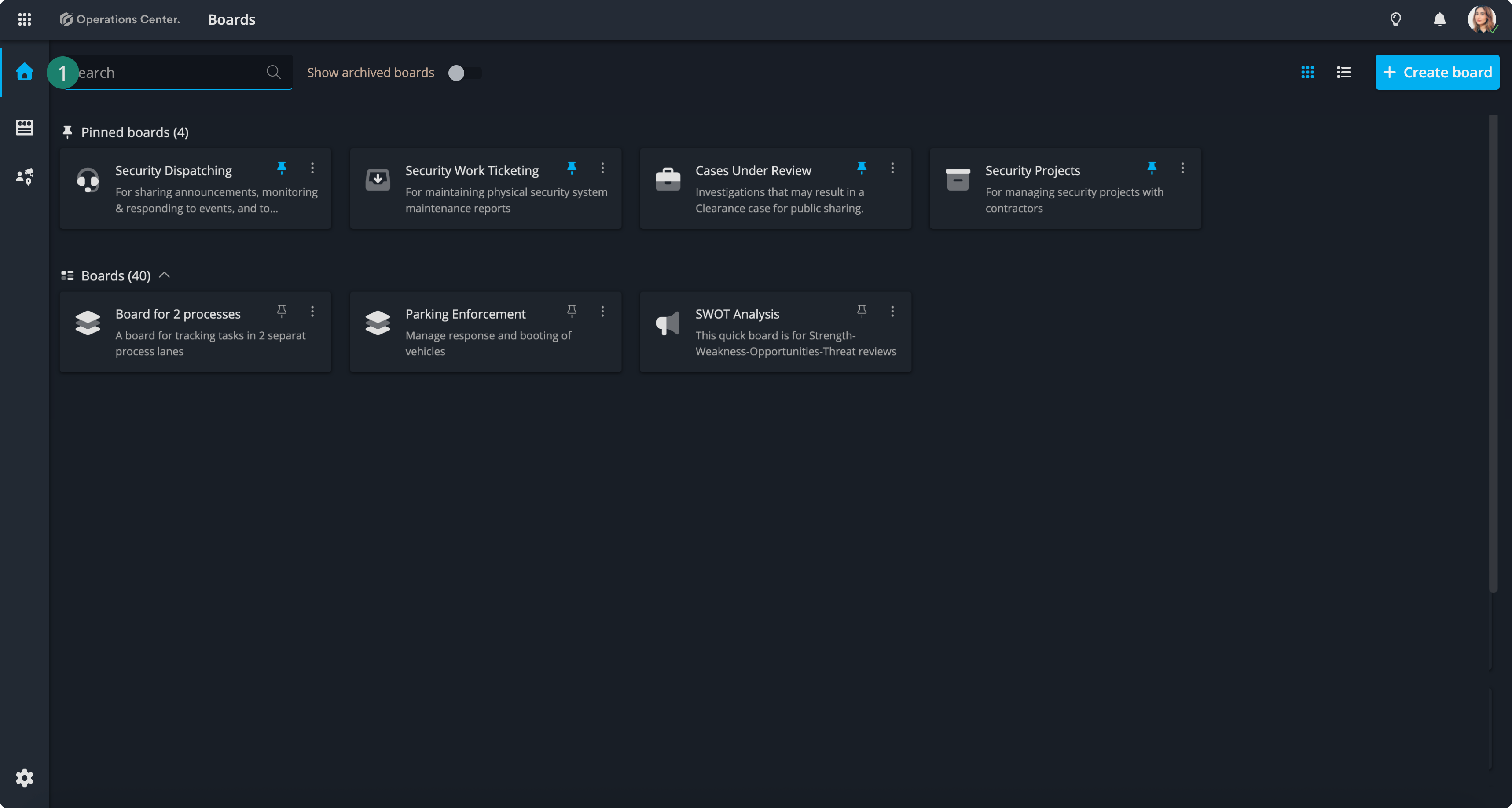
1. Boards Overview
This tab displays all the boards you have access to.
You can also create a new board directly from this page. Operations Center provides pre-configured templates to help you get started quickly.
If you are new to Operations Center and unfamiliar with boards, click here to learn more.
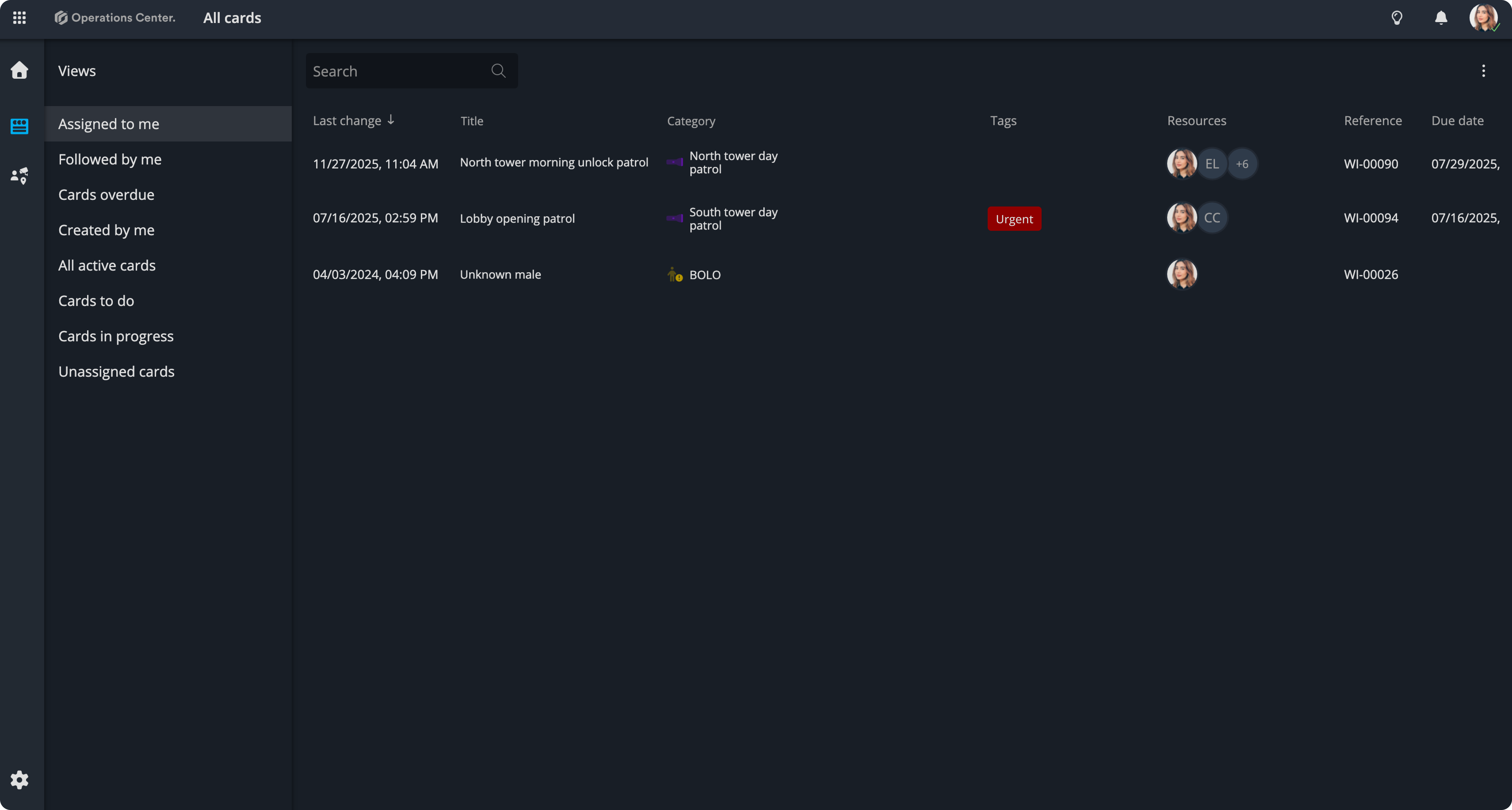
2. All Cards
This tab shows every card across all the boards you have access to in one consolidated view. You can create cards in several ways—adding them manually from a board, setting up automated triggers, or using the Operations Center plugin for Security Center. Click here to learn more.
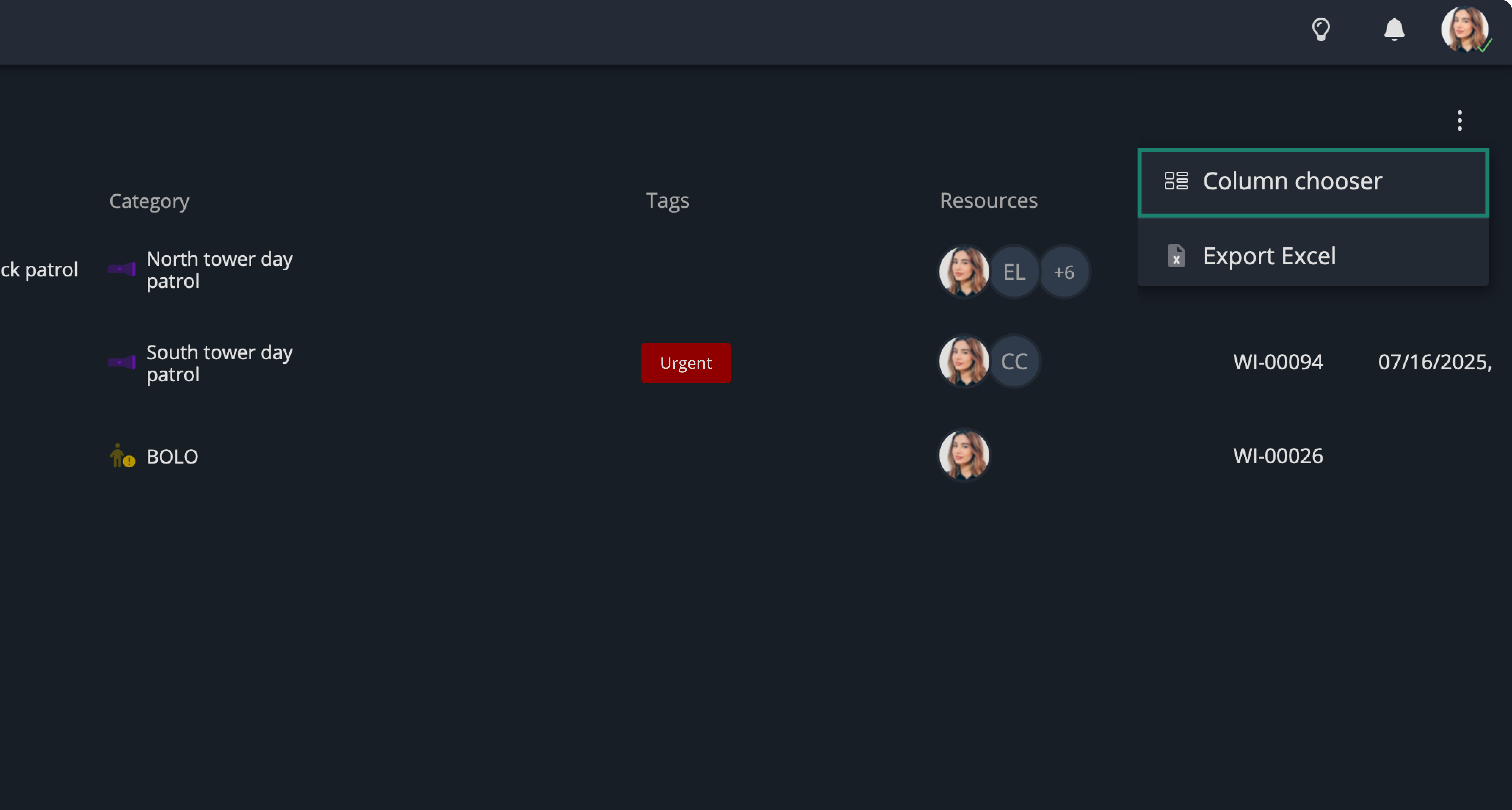
To view more data in your grid, click the ellipsis in the top-right corner and select Column Chooser. You can then search for and add the fields you’d like to display.
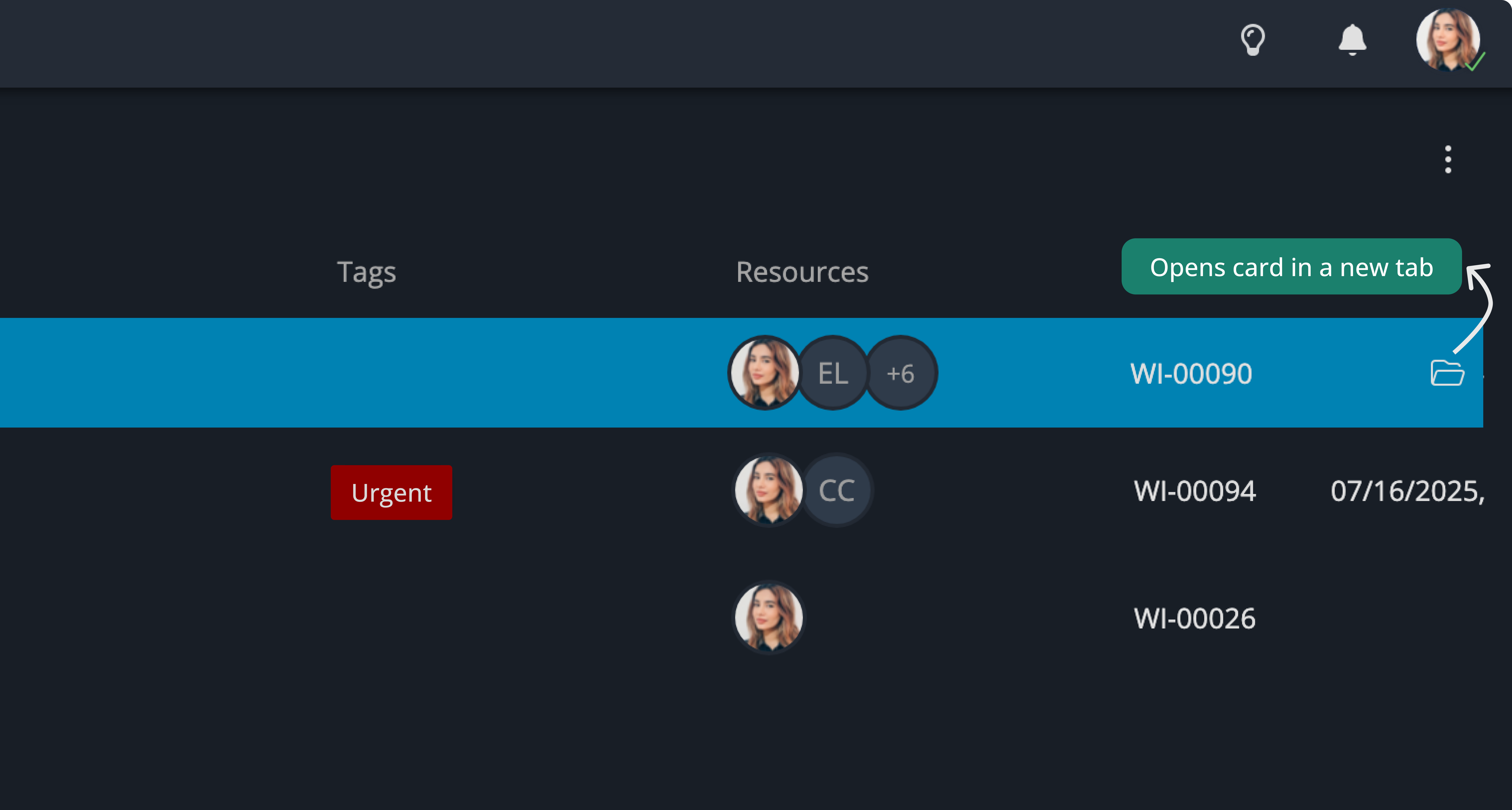
To open a card, hover over it and click on the open icon:
3. Resources
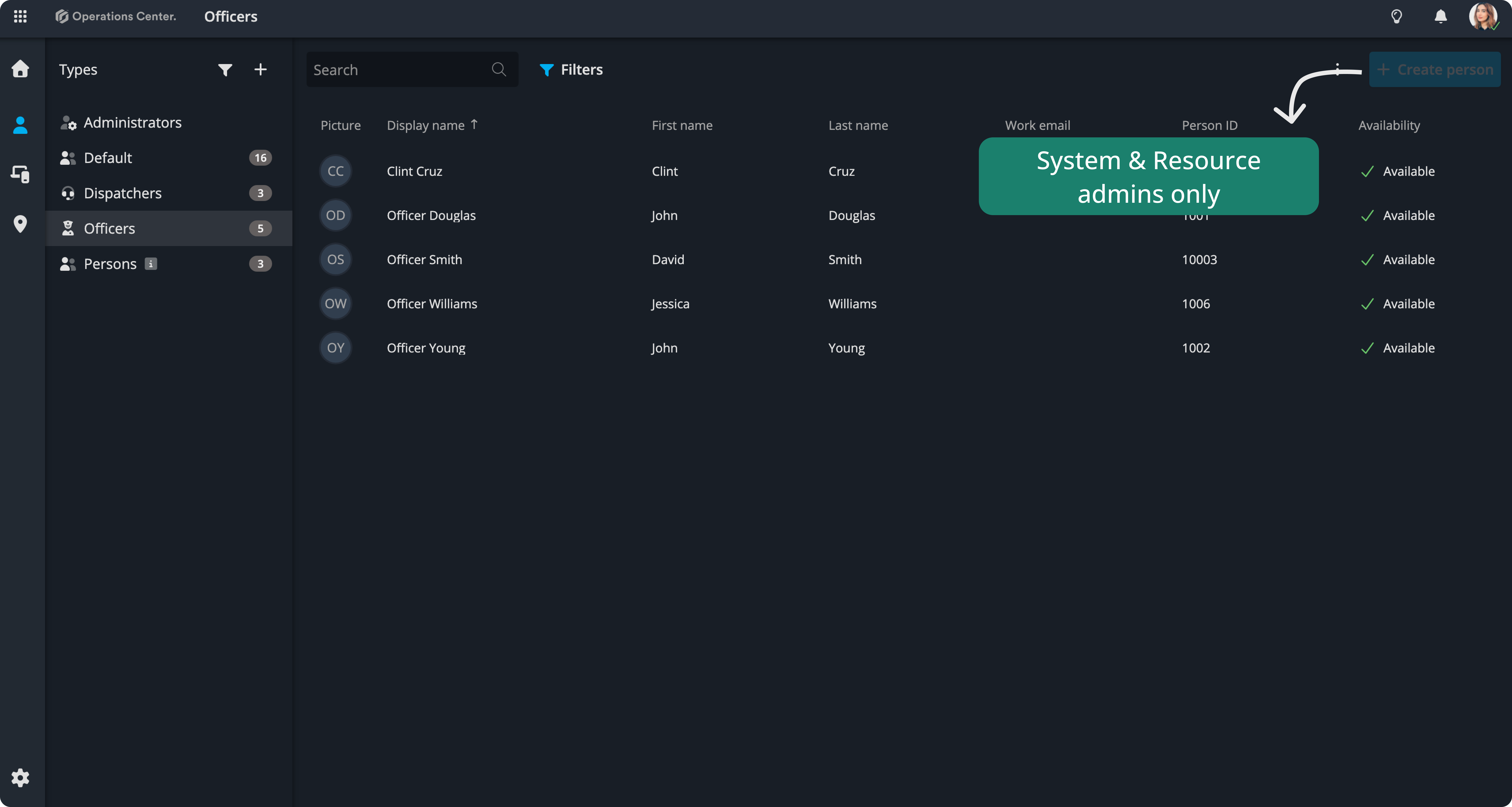
This tab provides access to all system resources. A dedicated guide is available to walk you through resource management features. Resources are the backbone of efficient operations, helping you manage tasks, projects, and workflows seamlessly. click here to read our dedicated article on how to Manage your resources with Operations Center.
Creating and editing resources are only available to System admins and Resource admins. Click here to read about our roles and permissions.
Contact Support
If you have questions or need assistance, please reach out to our support team via OC-Support@genetec.com.