
Subcards
Turn complex security work into clear, accountable actions
Security work is rarely one action. Incidents, investigations, and maintenance all involve multiple people, handoffs, and decisions. Subcards let teams break a single operational objective into smaller, independently owned work units without losing context.
Each subcard represents a real unit of work contributing to the main outcome. Subcards are created within a main card but each has its own layout and fields based on the type of work being performed. This allows teams to capture the right information for each activity without overloading a single card or cluttering the board.
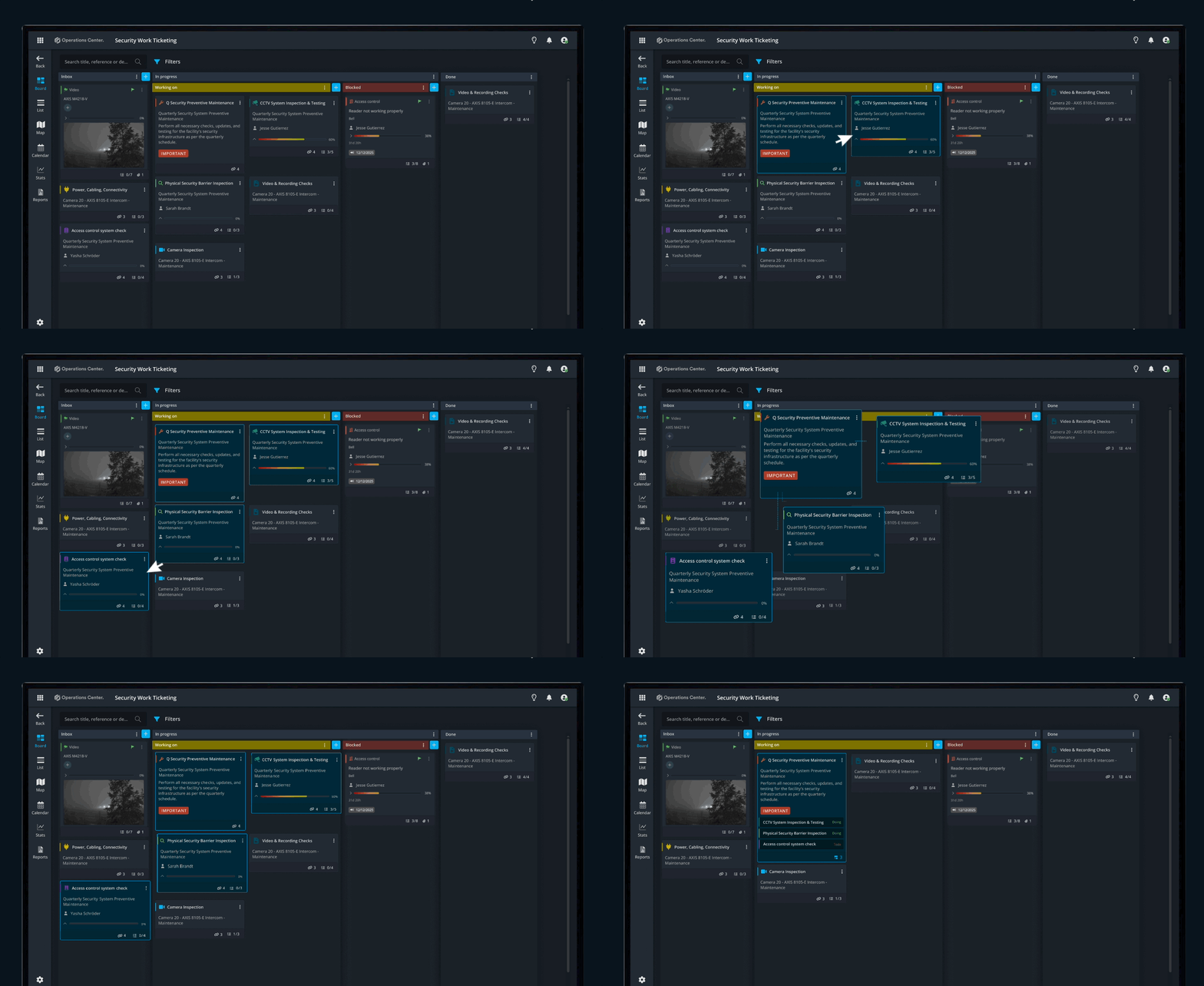
Create subcards
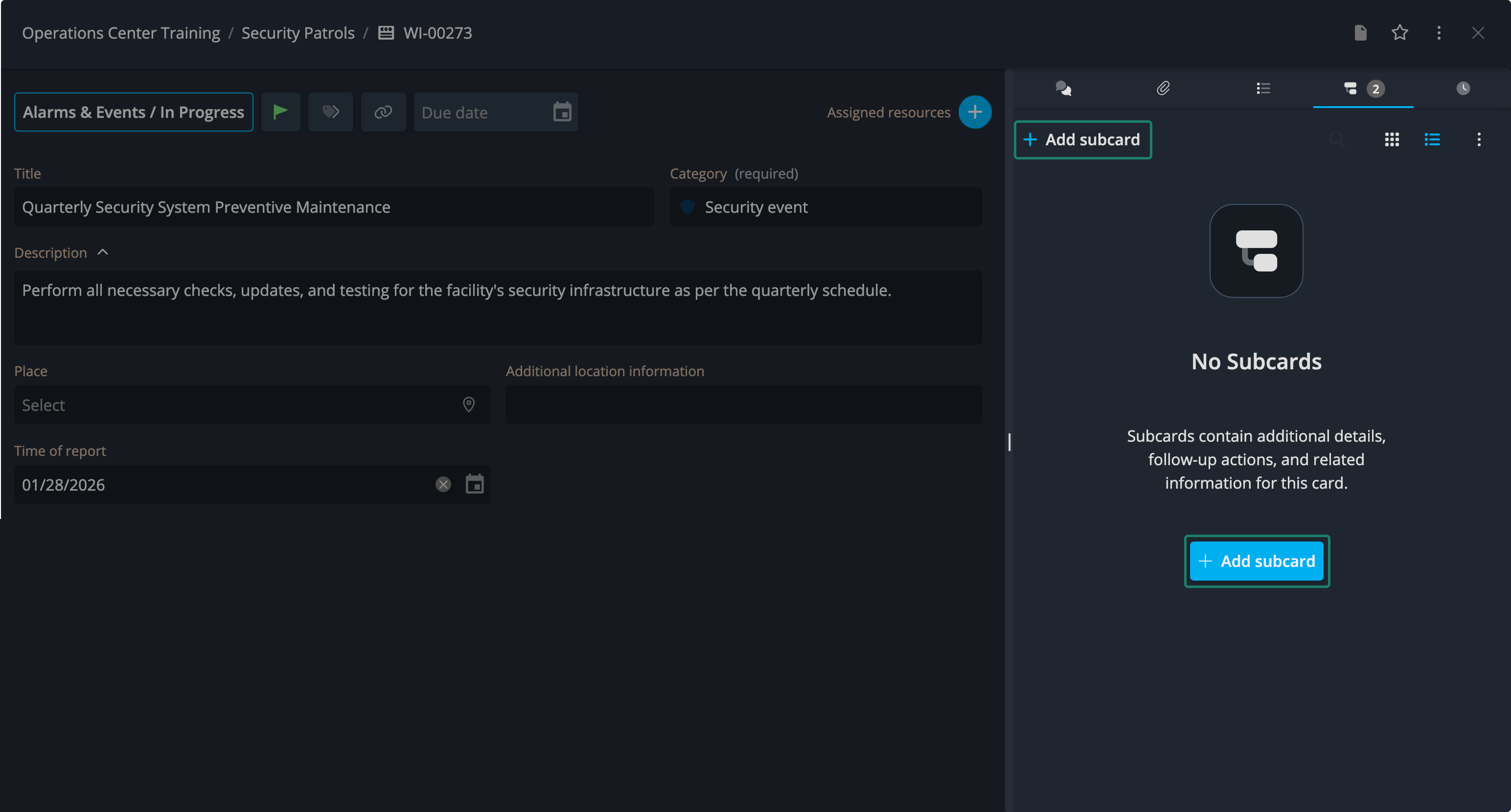
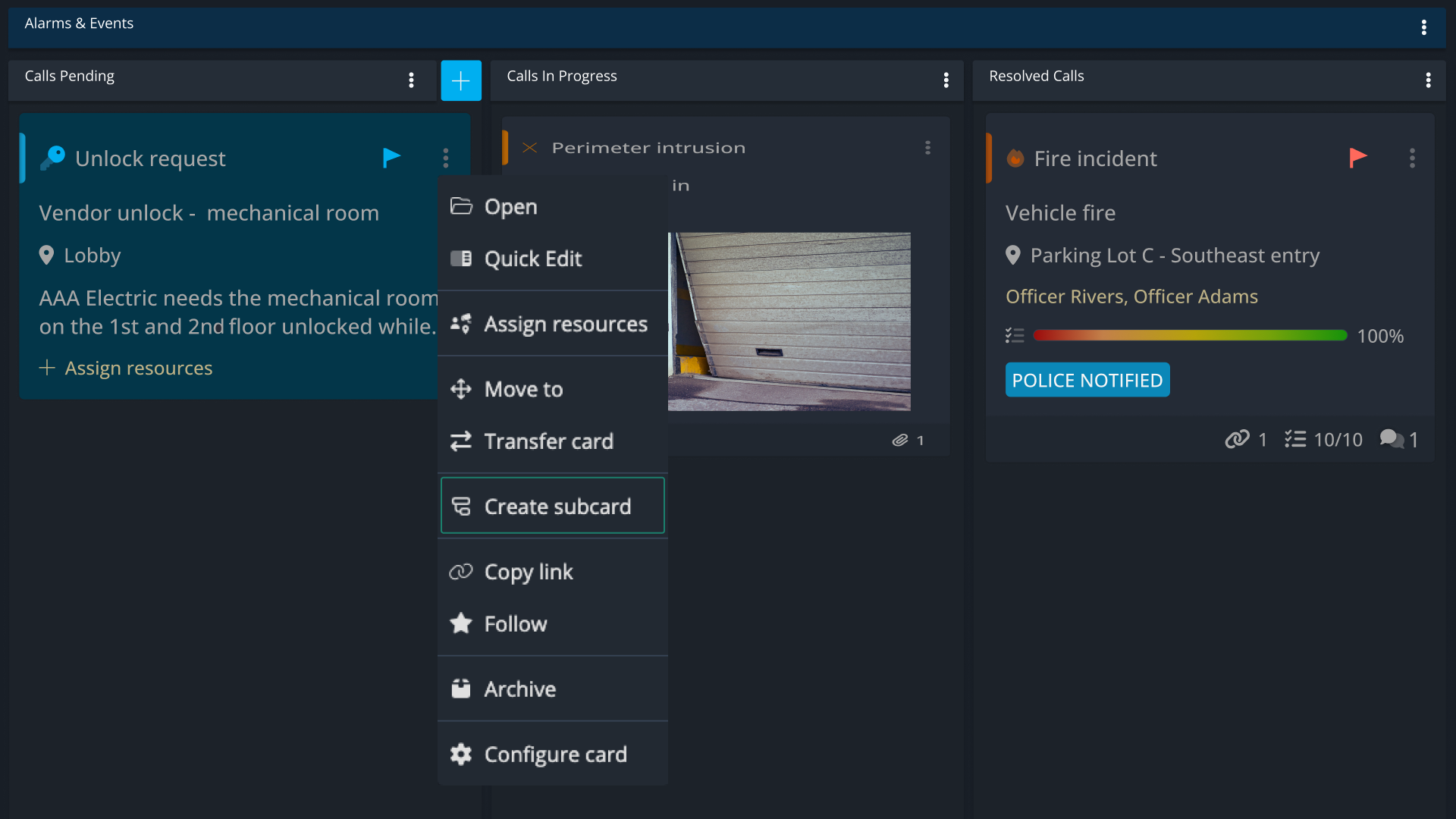
Top create a subcard either:
- Open the card, then in the right-hand panel, go to the Subcards tab and create one from there:
- Or click the ellipsis (⋯) on a card and select Create subcard from the context menu:
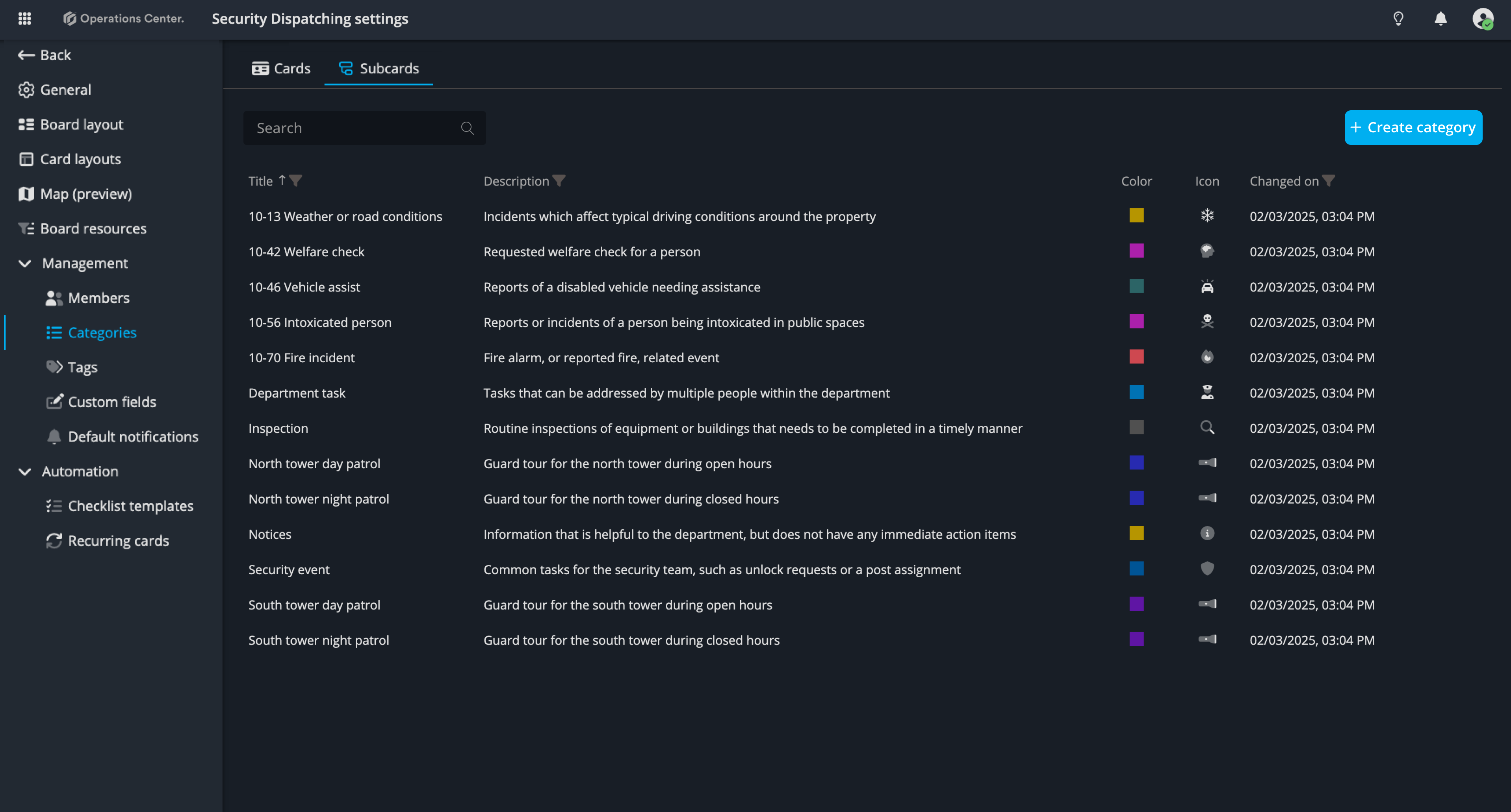
Subcards categories
Like cards, subcards can have categories that represent the type of task, work, or project they are. Each category can have:
- A specific layout with relevant fields
- An assigned checklist template to guide operators through the process
- A predefined priority
When a subcard is created using a category, the corresponding layout, checklist template, and priority are applied automatically.
Subcard layout
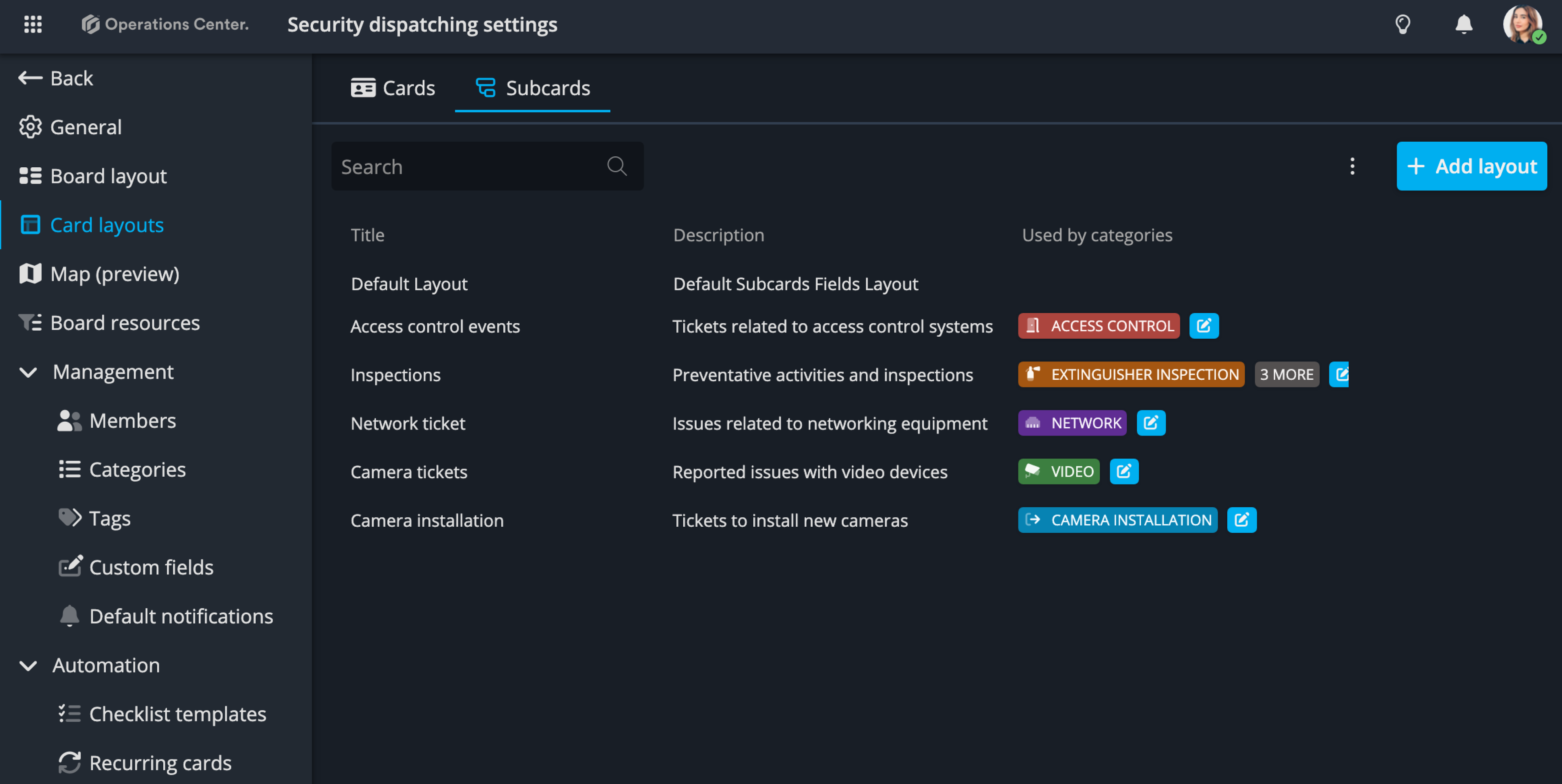
The fields displayed on a subcard are determined by its category and are fully customizable by board administrators, just like cards. To configure this:
- Open the Settings page
- Navigate to the Card Layout tab
From there, you can define which fields appear on subcards for each category.
View subcards on boards
Each subcard is part of a main card. In Operations Center, you can customize what is displayed on cards sitting in the board.
To show subcards on a main card:
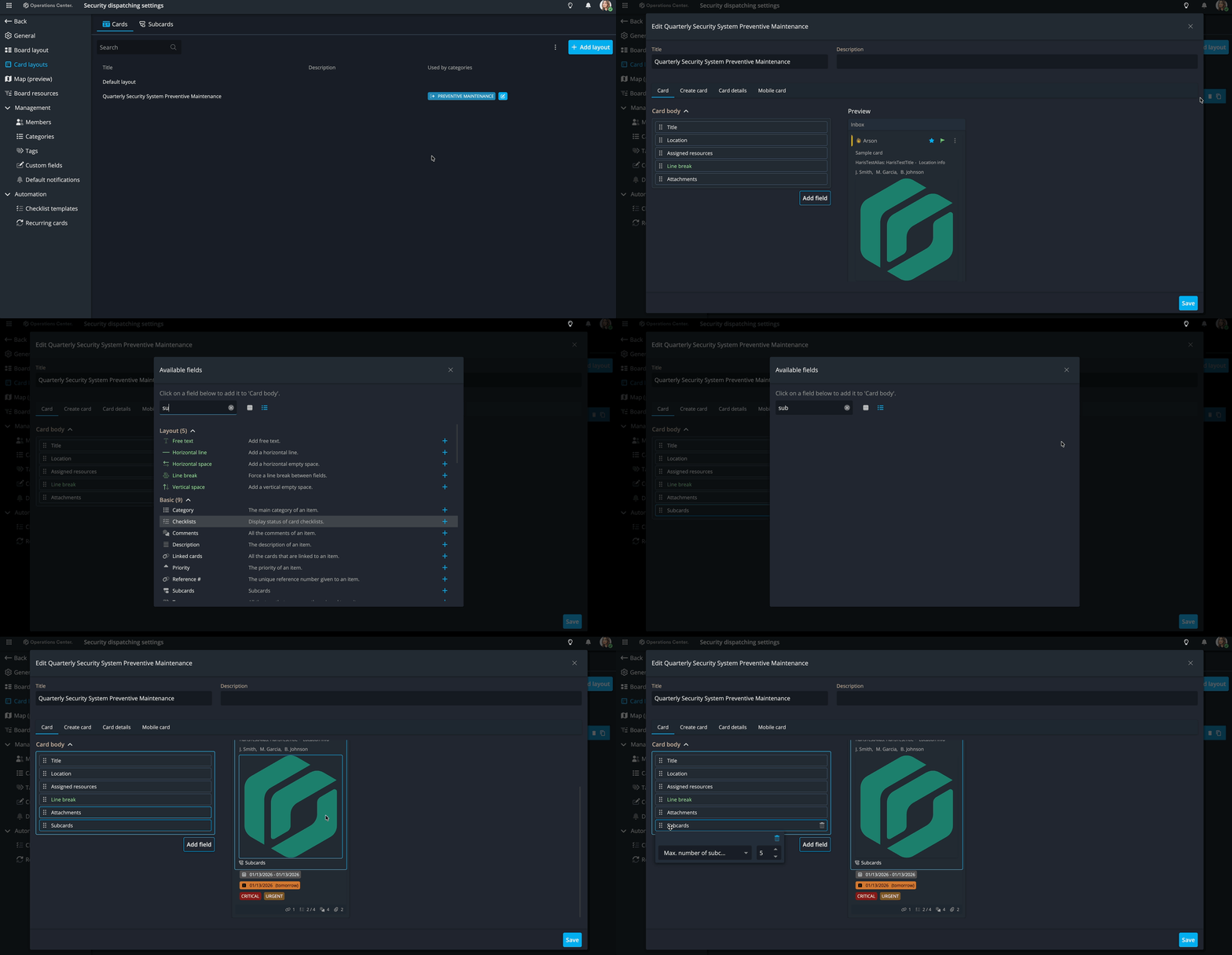
- Open the board settings.
- Go to the Card layouts tab.
- Select the correct layout (the layout used by the card’s category) and click on the edit option.
- Click Add fields and add Subcards to the layout.
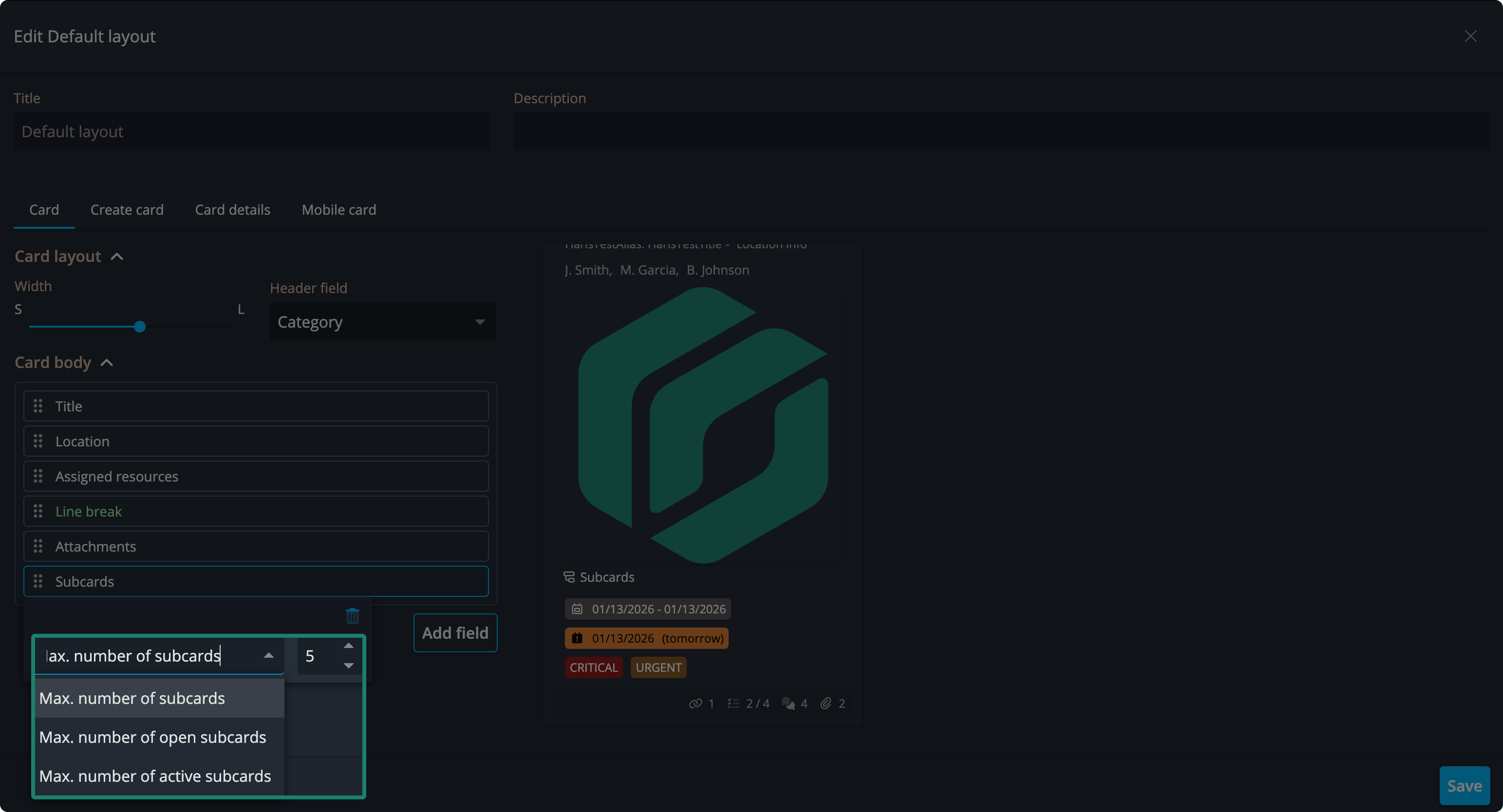
Here you can adjust the maximum number of subcards displayed on a card. For projects with many subcards, you can choose to show a set number of all, active, or open subcards to avoid cluttering the card:
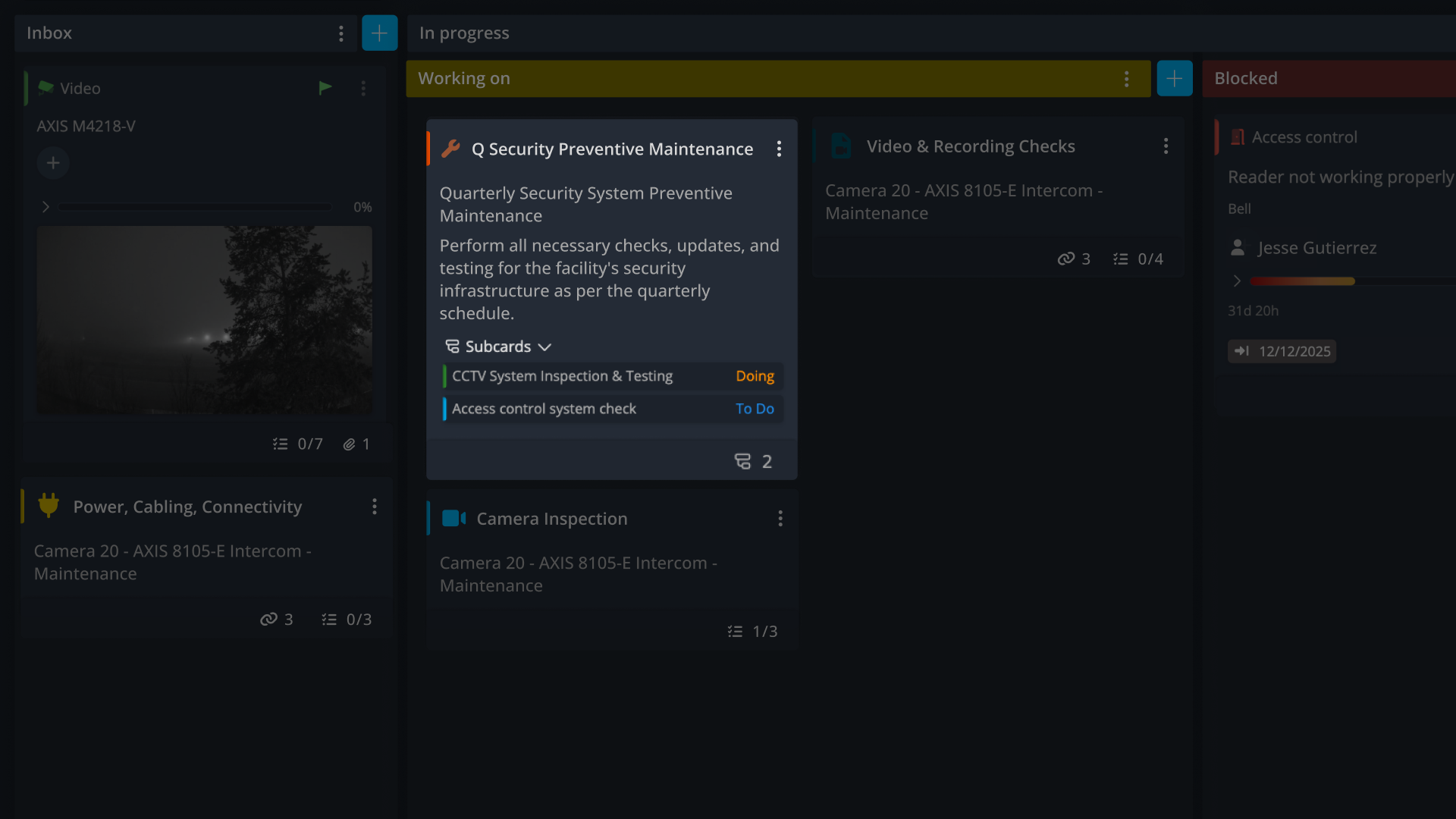
Subcards are displayed with a colored bar that represents their category, along with the subcard’s title and its state, which can be To Do, Doing, Waiting, or Done:
Subcards in card details
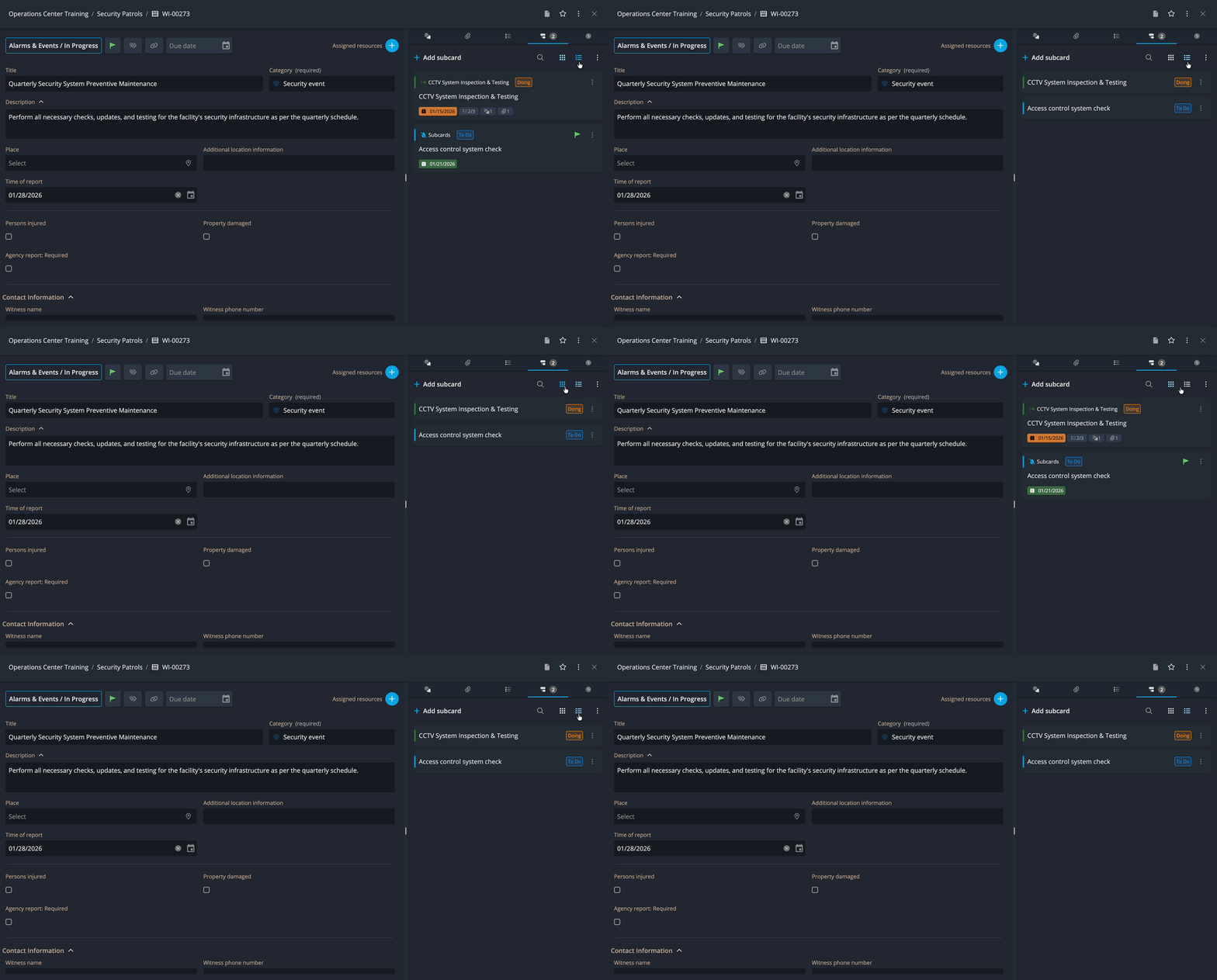
When you open a card that contains subcards, the right-hand section of the details popup includes a Subcards tab. Here, you can search for subcards and view them either in full detail or in a list view for a broader overview when there are many subcards.
View archived subcards
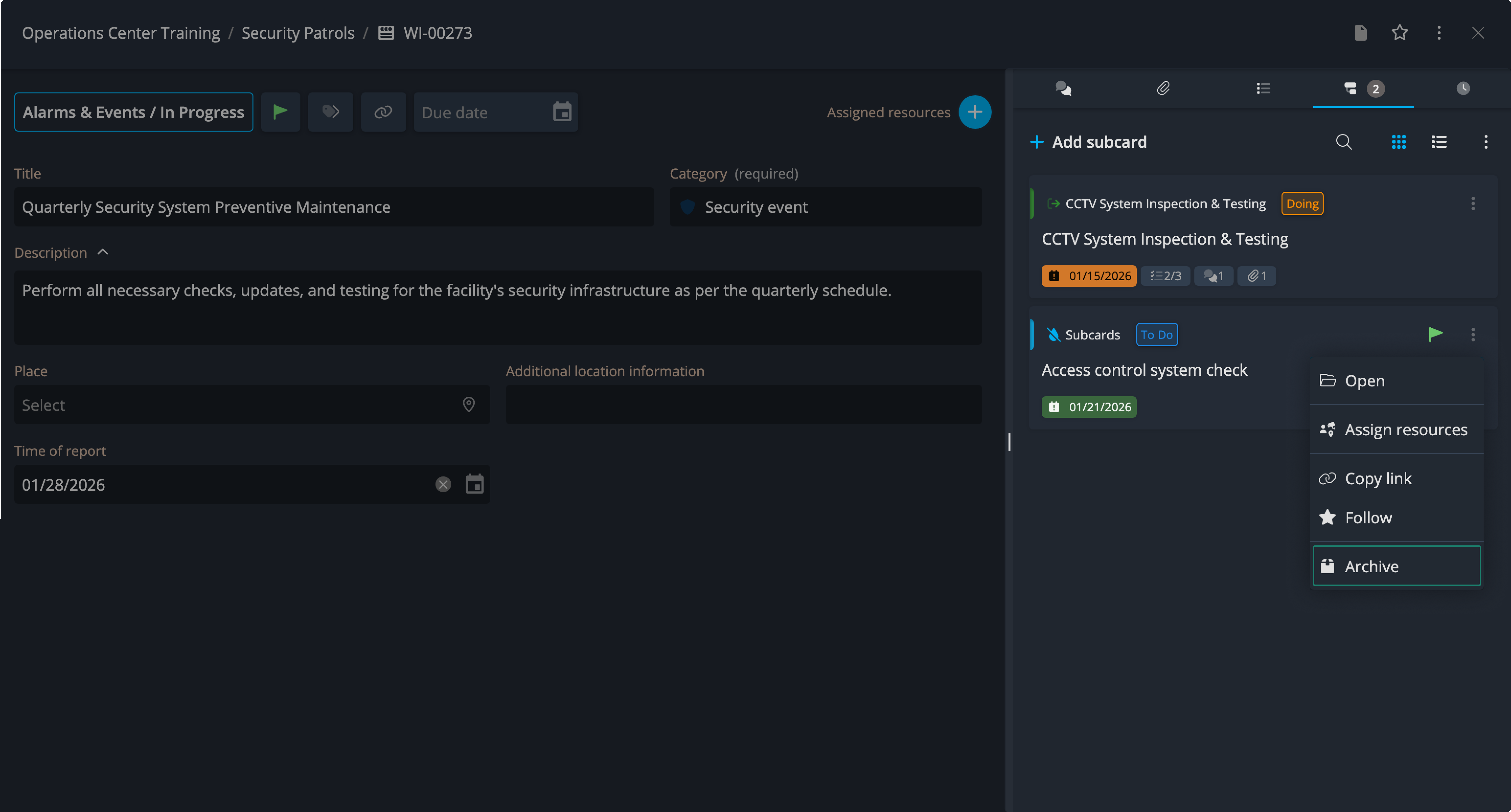
Subcards can be archived from the context menu by clicking the (...) and selecting Archive:
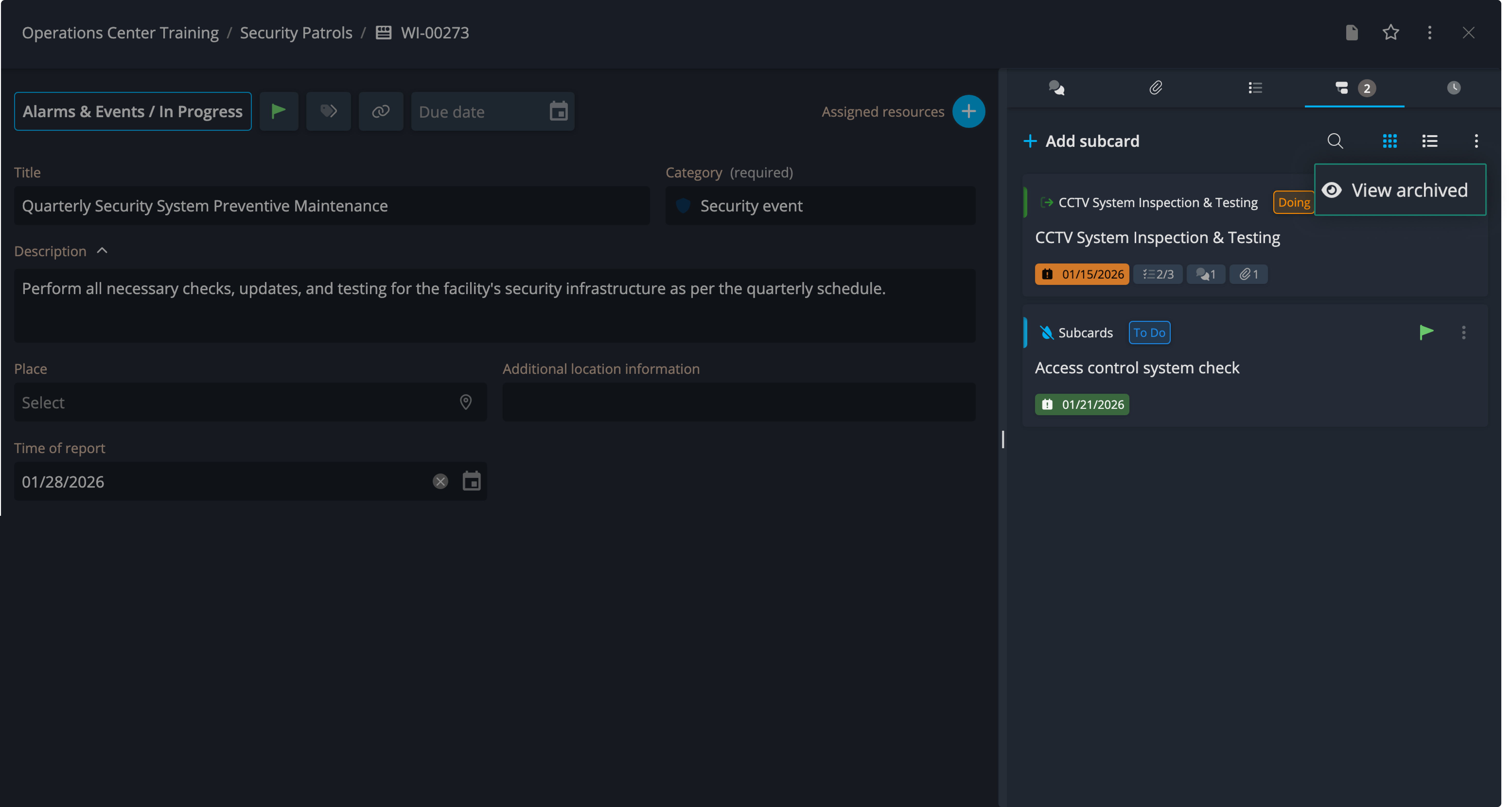
Archived subcards remain accessible and can be viewed from the context menu at the top:
Contact Support
If you have questions or need assistance, please reach out to our support team via OC-Support@genetec.com.